htmlwebdesigner

Edit Template

Author name: wp-designer

10 Best Web Hosting Providers in India with Logos – Hostinger, Bluehost, SiteGround, GoDaddy & More

Looking for the Best Web Hosting in India? Here’s the Ultimate 2026 List

1. Hostinger India Intro: Hostinger India is the most affordable hosting provider offering lightning-fast LiteSpeed servers, a clean interface, and localized support. Its pricing is unbeatable, especially for startups and individuals launching their first website. With advanced optimization tools and excellent uptime, Hostinger stands out in value-for-money hosting. Key Features That Make It Stand Out: ⚡ LiteSpeed Cache for ultra-fast performance 💰 Lowest starting price among leading hosts 🌍 Global CDN & SSD storage on all plans 🛡️ Free SSL & weekly backups 🔧 Custom-built hPanel (not cPanel) 📞 24/7 live chat customer support 2. Bluehost India Intro: Bluehost is officially recommended by WordPress.org and trusted globally. With its Indian hosting plans, Bluehost offers a perfect blend of ease of use and performance. It’s ideal for bloggers, content creators, and small businesses looking for reliable WordPress hosting. Key Features That Make It Stand Out: 🌐 Official WordPress-recommended host 🆓 Free domain & SSL for 1st year 🚀 Integrated SEO, email, and marketing tools 🖱️ 1-click WordPress install with staging 🧩 Easy cPanel access for beginners ☎️ 24/7 India-based support via call/chat 3. A2 Hosting Intro: A2 Hosting is focused on speed and developer customization. Known for its Turbo Servers (up to 20x faster), it caters well to websites requiring high performance, security, and flexibility. A2 is the go-to host for developers, coders, and eCommerce sites in India. Key Features That Make It Stand Out: ⚡ Turbo Servers for 20x faster page loads 🔄 Free site migration from any host 🧰 Developer-friendly (supports Python, Node.js, Git) 🛡️ Perpetual security with HackScan 💵 Anytime money-back guarantee 🌍 Global data centers including Asia 4. HostGator India Intro:HostGator India is a reliable host for small businesses and entry-level websites. Its plans offer solid uptime, unlimited bandwidth, and easy scaling options. HostGator’s Indian infrastructure and support system make it ideal for local users. Key Features That Make It Stand Out: 🔄 Unmetered bandwidth & storage 🖱️ One-click app installs (400+ scripts) 🧠 Easy-to-use cPanel control panel 🌐 Free website builder included 📞 India-based phone/chat/email support 🛠️ Great for reseller & VPS upgrades 5. SiteGround Intro:SiteGround is a high-performance, Google Cloud-backed host ideal for WordPress and WooCommerce. It excels in speed, security, and scalability. With custom caching and smart backups, SiteGround is loved by developers and serious website owners. Key Features That Make It Stand Out: ☁️ Google Cloud infrastructure for stability ⚡ SuperCacher & dynamic caching for speed 🛡️ Proactive security & AI bot protection 🔁 Daily automated backups 🧑‍💻 Managed WordPress tools & staging 🧩 Seamless collaboration tools for teams 6. BigRock Intro:BigRock is one of India’s most popular hosting and domain companies. With beginner-friendly plans, local data centers, and Indian billing options, it’s a solid choice for freelancers and startups seeking affordable yet capable hosting. Key Features That Make It Stand Out: 🇮🇳 India-based data centers and payment options 🧰 Easy cPanel & Softaculous integration 📨 Unlimited email accounts included 🛡️ Free SSL on all plans 📞 Local toll-free support number 💻 Suitable for shared, VPS, and reseller hosting 7. GreenGeeks Intro:GreenGeeks offers eco-conscious web hosting powered by 300% renewable energy. With excellent speed, security, and environmental responsibility, it’s great for individuals and companies looking to reduce their digital carbon footprint. Key Features That Make It Stand Out: 🌱 300% green energy match 🔄 Free nightly backups & CDN ⚡ LiteSpeed & PowerCacher for performance 🧰 Developer-friendly (WP-CLI, Git, SSH) 🛡️ Real-time security scanning & firewall 🌍 Multiple global data center locations 8. Cloudways Intro:Cloudways simplifies cloud hosting by managing everything for you — from server setup to security. It supports top cloud providers like DigitalOcean, AWS, and Google Cloud. Ideal for developers and agencies who want high performance without managing infrastructure. Key Features That Make It Stand Out: ☁️ Choose from 5 cloud providers (DO, AWS, etc.) 🛠️ Fully managed cloud hosting 🔄 Free website migration included 🧩 Built-in CDN + Redis + Varnish 🕹️ Easy staging environments & backups 📞 24/7 expert support with live chat 9. WPX Hosting Intro:WPX Hosting is a premium choice for WordPress users demanding speed and world-class support. It includes its own CDN, malware removal, and unmatched support response times — perfect for mission-critical sites like high-traffic blogs and online stores. Key Features That Make It Stand Out: 🚀 WPX Cloud CDN for global speed 🔐 Free malware scanning & removal 🔁 Unlimited site migrations 🧼 Daily backups with 28-day retention ⚡ 30-second average support response 🛒 Ideal for WooCommerce and business sites 10. GoDaddy India Intro:GoDaddy India is a well-known hosting and domain provider offering all-in-one website solutions. With localized support, cPanel, and marketing tools, it is suited for business owners who want to manage everything under one roof — hosting, domains, email, and more. Key Features That Make It Stand Out: 🌐 India-optimized Linux & Windows hosting 🆓 Free domain, SSL & email accounts 🧠 Easy website builder with drag-drop tools 🧰 Familiar cPanel interface 📞 24/7 India-based phone support 🧩 Additional tools like email marketing & SEO 💡 Notes: ✅ Free Domain usually valid for the first year only 💽 Storage Type affects speed — SSD/NVMe preferred over HDD 📦 All hosts support WordPress, but managed platforms (like WPX, Cloudways) offer better performance and automation

Looking for the Best Web Hosting in India? Here’s the Ultimate 2026 List Read More »
How to Noindex Paginated Pages in Yoast SEO

How to Noindex Paginated Pages in Yoast SEO

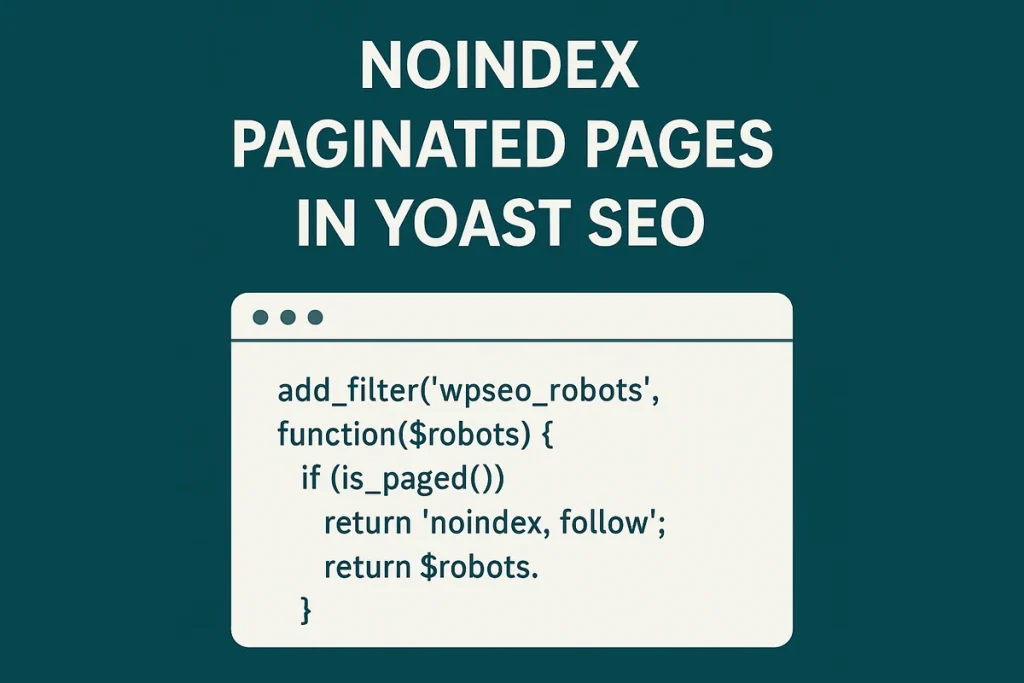
When it comes to SEO, paginated pages (like /page/2/, /page/3/, etc.) can often pose issues by diluting crawl budget or creating duplicate content. While Yoast SEO is one of the most powerful plugins for WordPress SEO, it doesn’t offer a direct setting in the UI to noindex paginated pages. Fortunately, with a small code tweak, you can tell search engines not to index these pages while still allowing them to follow the links. Here’s how you can noindex paginated pages using Yoast SEO in just a few steps. Why Noindex Paginated Pages? Paginated pages are typically used for archives, blogs, or product listings. These pages don’t usually contain unique content and are just extensions of previous pages. Indexing them can: Waste crawl budget Create duplicate or thin content issues Split link equity across multiple pages By adding a noindex, follow directive, you prevent these pages from appearing in search results, but still allow search engines to follow the links they contain—preserving SEO value. How to Noindex Paginated Pages in Yoast SEO To implement this, you just need to add a simple filter to your WordPress theme’s functions.php file or a custom plugin.

How to Noindex Paginated Pages in Yoast SEO Read More »

8 Best WordPress Sliders for Elementor Free & Paid in 2025

8 Best WordPress Sliders for Elementor Free & Paid in 2025

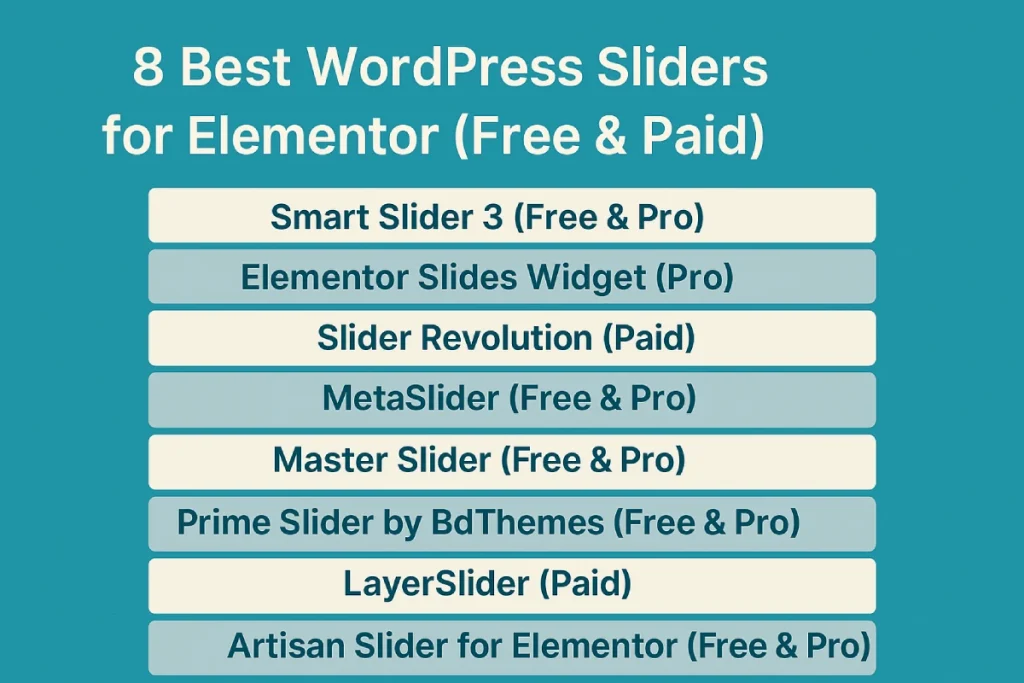
Sliders are a dynamic method to present images, products, or articles on your WordPress site. If you’re using Elementor—the famous drag-and-drop page builder—you need a slider plugin that’s both compatible and powerful. In this post, we’ve compiled a list of the top 8 WordPress sliders for Elementor, including both free and premium choices, to help you create great visual experiences for your visitors. 1. Smart Slider 3 (Free & Pro) Smart Slider 3 is one of the most popular slider plugins for WordPress, known for its intuitive interface and deep integration with Elementor. The free version offers basic slide creation features, while the Pro version unlocks layers, animations, and dynamic content sources. Key Features: Drag-and-drop slide builder Responsive and mobile-friendly Layer-based editing Pre-designed templates (Pro) Best For: Users who want flexibility and design control without coding. Free Paid 2. Elementor Slides Widget (Pro) If you’re already an Elementor Pro user, you have access to the Slides widget—a built-in, easy-to-use slider tool. While it doesn’t offer as many advanced features as dedicated slider plugins, it integrates seamlessly into the Elementor workflow. Key Features: Smooth transitions and animation settings Customizable buttons and content Mobile responsiveness Best For: Elementor Pro users who want a lightweight solution for basic sliders. Free Paid 3. Slider Revolution (Paid) Slider Revolution is a powerhouse when it comes to slider creation. Though it’s a premium plugin, it offers unmatched animation capabilities, visual effects, and advanced design tools. It also offers pre-built slider templates that you can easily import and customize. Key Features: Visual editor with timeline-based animation 200+ templates Integration with Elementor via shortcode Advanced layer animations Best For: Designers and developers building high-end, visually rich websites. 4. MetaSlider (Free & Pro) MetaSlider is a beginner-friendly and SEO-optimized slider plugin that works well with Elementor via shortcode. It’s lightweight, fast, and comes with a range of slider types, including flex, responsive, and carousel sliders. Key Features: Multiple slider types (Flex, Nivo, Coin, etc.) Image cropping and SEO fields Easy shortcode integration Pro version includes layer slides and video support Best For: Bloggers, marketers, and small businesses looking for a reliable, easy-to-use solution. 5. Master Slider (Free & Pro) Master Slider is another popular slider plugin offering touch navigation, smooth transitions, and responsive design. It integrates with Elementor via shortcode and includes some Elementor-specific add-ons in the Pro version. Key Features: Touch swipe navigation Retina-ready and responsive Drag-and-drop interface Pro version includes WooCommerce sliders Best For: Users who want mobile-optimized sliders with minimal setup. 6. Prime Slider by BdThemes (Free & Pro) Prime Slider is built specifically for Elementor users. It includes pre-designed slider blocks that can be added directly from the Elementor panel, making it one of the most Elementor-native solutions on the market. Key Features: Elementor widget-based sliders Responsive and mobile-friendly Unique designs for niche industries Pro version includes more advanced skins Best For: Elementor users who prefer native integration and modern, niche-specific designs. 7. LayerSlider (Paid) LayerSlider is a feature-rich slider plugin known for its animation tools and design flexibility. Though it’s a premium product, it delivers advanced visual effects, transitions, and deep customization options. Key Features: Powerful animation editor Parallax and 3D transitions WooCommerce and post content support Works with Elementor via shortcode Best For: Agencies and advanced users who want complete control over slider animations. 8. Artisan Slider for Elementor (Free) Artisan Slider is a lightweight and performance-focused slider plugin made specifically for Elementor. Designed to be intuitive and fast, it lets you create responsive sliders directly within Elementor’s visual editor without extra bloat. With both free and premium versions, it’s a great option for users who want simplicity without sacrificing design quality. Key Features: Fully native Elementor widget Lightweight and optimized for fast loading Pre-made templates for quick design Supports image, video, and content slides Best For: Elementor users who want a fast, minimalist, and easy-to-use slider solution that integrates seamlessly into their workflow. Free Final Thoughts Choosing the right WordPress slider for Elementor depends on your design goals, budget, and ease-of-use preferences. If you’re just starting, Smart Slider 3, MetaSlider, or Artisan Slider are excellent free options. For more advanced needs, Slider Revolution or LayerSlider provide unmatched capabilities. And if you’re already using Elementor Pro, its built-in Slides widget might be all you need. Always consider the plugin’s responsiveness, performance impact, and design features before making a choice. With the right slider, you can turn any section of your Elementor-built site into a visual masterpiece.

8 Best WordPress Sliders for Elementor Free & Paid in 2025 Read More »

Top 10 Elementor Addons (Free & Premium) for WordPress

Supercharge Your Site: 7 Game-Changing Elementor Addons

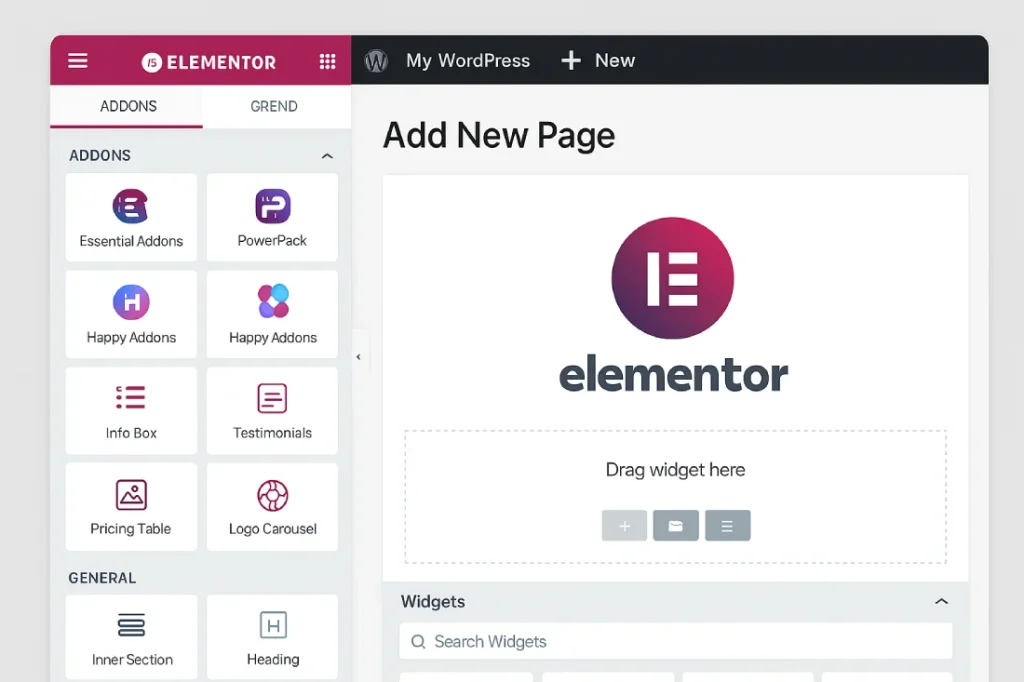
Elementor has revolutionized WordPress web design with its intuitive drag-and-drop builder. But what truly makes it a powerhouse is the ecosystem of Elementor addons plugins. These addons extend functionality far beyond the default widget set—giving designers, marketers, and developers the freedom to build stunning, high-converting websites. Whether you’re running a personal blog, a business website, or an online store, these free and premium Elementor addons will help you stand out. Here’s our updated list for 2025. 1. Essential Addons for Elementor (Free + Premium) Essential Addons is one of the most popular and reliable plugins in the Elementor ecosystem. With over 90+ widgets, it covers everything from content elements to advanced marketing tools. Free Version: 40+ widgets Pro Version: Pricing starts at $39.98/year Highlight Features: Post grids, advanced data tables, content protection, and WooCommerce widgets Free Paid 2. Happy Addons (Free + Premium) Happy Addons brings creativity to life with its stunning pre-built designs and motion effects. Free Version: 30+ widgets Pro Version: Starts at $39/year Highlight Features: Live copy, cross-domain copy-paste, floating effects Free Paid 3. Element Pack (Free + Premium) Element Pack offers a broad suite of widgets, extensions, and ready-made templates. It’s perfect for agencies looking for an all-in-one addon. Free Version: 70+ widgets Pro Version: Starts at $49/year Highlight Features: 300+ widgets, third-party integrations (like Mailchimp, ConvertKit) Free Paid 4. PowerPack for Elementor (Free + Premium) Created by the team behind Beaver Addons, PowerPack is a premium-only plugin that delivers performance-focused widgets. Free Version: 40+ widgets Pro Version: Starts at $49/year Highlight Features: 70+ widgets, Form stylers, advanced tabs, content toggle, and off-canvas menu Free Paid 5. The Plus Addons for Elementor (Free + Premium) The Plus Addons is a massive toolkit with over 120+ Elementor widgets and over 18+ templates. Free Version: 35+ widgets Pro Version: Starts at $35/year Highlight Features: 75+ widgets, Mega menu builder, dynamic listings, and blog layouts Free Paid 6. Livemesh Addons for Elementor (Free + Premium) Livemesh offers simple yet effective design tools, making it great for bloggers and small businesses. Free Version: Yes Pro Version: Starts at $29/year Highlight Features: Testimonials, pie charts, carousels, and animated pie charts Free Paid 7. Unlimited Elements for Elementor (Free + Premium) Unlimited Elements lives up to its name with over 300+ widgets and a widget creator for developers. Free Version: 100+ widgets Pro Version: Starts at $49/year Highlight Features: Table of contents, advanced post grids, business hours, weather widget Free Paid Final Thoughts Choosing the right Elementor addons plugins can drastically improve the look, feel, and performance of your WordPress website. Whether you want to add dynamic content, optimize WooCommerce functionality, or craft beautiful animations—there’s an addon here for every need. For beginners, free plugins like Essential Addons and Happy Addons provide excellent starting points. For professionals and agencies, The Plus Addons, Unlimited Elements, and PowerPack bring the muscle.

Supercharge Your Site: 7 Game-Changing Elementor Addons Read More »

Increase WordPress Memory Limit Guide

Increase the WordPress Memory Limit: A Complete Guide

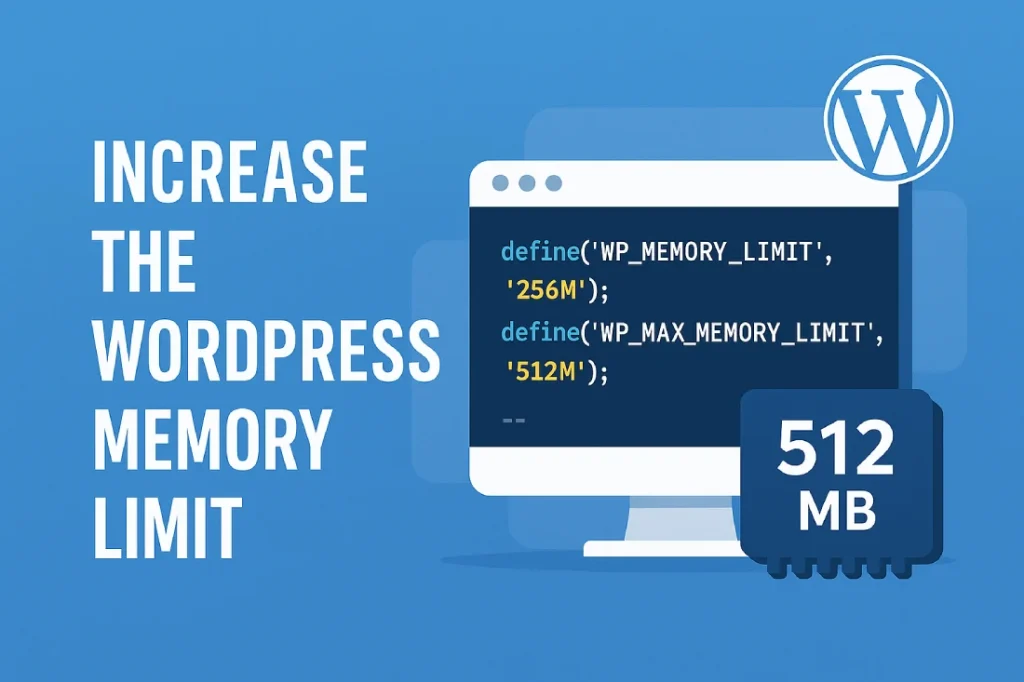
WordPress is a powerful content management system, but as your website grows and starts using more plugins, themes, or handles heavier traffic, you might encounter a common error: “Allowed memory size of x bytes exhausted.” This happens when your site exceeds the allocated WordPress memory limit — the maximum amount of memory PHP scripts are allowed to use. Fortunately, there’s a straightforward fix: increasing the memory limit to ensure smooth and stable performance. Why Increase the WordPress Memory Limit? WordPress relies on PHP to run, and like any software, it needs memory to function efficiently. The default memory limit on many hosting providers is 32MB or 64MB, which can be too low for complex sites using resource-intensive plugins like WooCommerce, Elementor, or WPML. Common symptoms of a low memory limit include: White screen of death (WSOD) Inability to upload media Admin panel errors Plugin/theme installation failures Increasing the memory limit can resolve these issues and improve overall site stability. How to Check Your Current WordPress Memory Limit Before increasing the limit, check what’s currently allocated. You can do this by: Using a plugin like “Site Health” or “WP Memory Usage.” Viewing your phpinfo() file: Create a new .php file (e.g., info.php) and insert: Upload it to your root directory and visit yourdomain.com/info.php Look for memory_limit in the output. How to Increase the WordPress Memory Limit There are several methods to increase your memory limit. Choose the one that suits your hosting environment. 1. Edit wp-config.php   This is the recommended method for most WordPress users. Open your site’s root directory via FTP or File Manager. Locate and open wp-config.php Add this line just before /* That’s all, stop editing! */: Save the file. If you’re on the admin side and want to allocate more memory just for that, you can also add: Note: WP_MEMORY_LIMIT is for frontend usage, while WP_MAX_MEMORY_LIMIT is used in the admin dashboard. 2. Modify php.ini (if available)   For VPS or dedicated hosting environments: Locate your php.ini file (ask your host if unsure). Find or add this line: 3. Edit .htaccess   If you can’t access php.ini, try modifying .htaccess (Apache servers only): Add this line: Important: Some shared hosts don’t allow memory changes via .htaccess and may return a 500 error. 4. Contact Your Hosting Provider   If none of the above methods work or you’re on a shared server, reach out to your hosting provider and request a higher memory allocation. What Is the Maximum WordPress Memory Limit? Technically, there’s no strict “maximum” memory limit, but it depends on: Your server’s total available RAM Hosting plan restrictions PHP version (some versions cap memory by default) Recommended limits: Small blogs: 128M Medium to large sites or WooCommerce stores: 256M to 512M Heavy resource sites or custom applications: 512M to 1024M+ Setting memory to 512M is usually sufficient for most large sites, and 1024M (1GB) is an upper bound for very demanding setups. Final Thoughts Increasing the WordPress memory limit is a simple but powerful tweak that can prevent errors, boost performance, and improve the admin experience. Whether you’re running a personal blog or a busy eCommerce store, ensuring your site has enough memory is essential for smooth operation. Always remember to back up your site before making any changes, and if you’re unsure, ask your hosting support for assistance. Your website’s performance — and your peace of mind — will thank you.

Increase the WordPress Memory Limit: A Complete Guide Read More »

Scroll to Top